✨ Beginner Digital Skills Batch Open! | Ages 8–10 | 📞 +91 88277 31006
👶 Ages 8–10 📚 Class 3–5 🟢 Batch Open

Beginner Digital Skills Pathway — Foundational Tech Literacy

SkillNest's Beginner Digital Skills path empowers Class 3–5 children to master computer essentials, touch typing, Scratch visual coding, and digital safety through live online classes.

⌨️
Touch TypingCorrect Finger Habits
🎮
Coding ProgramMIT Block Visuals
🛡️
Digital SafetyPopups & Privacy
🎮 Beginner Core Pillars
💻
Computer Orientation & Files
⌨️
Touch Typing & Muscle Memory
🎮
MIT Scratch Logic Block Coding
🛡️
Internet Rules & Personal Safety
100% Free & Instant ✨ New

🧠 Discover Your Personality Type

Take India's most practical HEXACO personality assessment — 100 science-backed questions designed for students. Understand your strengths, learning style & career fit in minutes.

🔬 Science-Based ⏱️ ~10 Minutes 📊 Instant Results 🔒 100% Private 🎓 For Students
Take Free Personality Test → No sign-up required
🎯
Know Your Strengths
Uncover your natural talents and how to apply them in studies & career.
📚
Better Learning Style
Understand how you learn best and maximise your academic performance.
🚀
Career Clarity
Get insights into which fields and roles suit your personality profile.

What should beginners learn first?

Beginners aged 8–10 should first learn computer basics, including file structures and hardware operations, followed by touch typing to build keyboard muscle memory. Additionally, they should study basic digital safety rules and introductory block coding, such as visual Coding Program, to develop logical and computational thinking skills safely.

Beginner Path Core Skills

Specifically structured for Class 3–5 children to establish critical computer foundations with zero prior experience.

💻

Computer Orientation

Understanding operating systems, hardware parts, shortcuts (Ctrl+C, Ctrl+V), and folder hierarchies for school projects.

⌨️

Touch Typing Habits

Developing speed and typing accuracy through home-row finger positioning, targeting 20+ WPM typing speed with zero keys hunting.

🎮

Scratch Logic Fundamentals

MIT block coding visual logic basics. Kids drag event, control, sprite motion, and loop blocks to create custom games and animated stories.

🛡️

Digital Safety & Ethics

Learning safe browser practices, what is private data, how to avoid shady downloads, and digital etiquette.

6-Week Learning Roadmap

Week 1

Computer Basics

Operating systems, parts of a computer, folders, creating directories, and core navigation shortcuts.

Week 2

Touch Typing

Mastering home-row muscle memory and developing speed, targeting 20+ WPM typing speed.

Week 3

Internet Skills

Browsing search strategies safely, file downloading, understanding URLs and web domains.

Week 4

Scratch visual logic

MIT visual coding interface, learning Sprite coordinates, motion blocks, control block loops, and sound clips.

Week 5

Digital Safety

Privacy details protection, identifying online popups, block coding an interactive arcade game project.

Week 6

Scratch Showdown

Compiling coding bugs, showcasing interactive Scratch story projects, typing test, and certification ceremony.

Beginner Path Expected Outcomes

Topic Area Before SkillNest After SkillNest
Computer Literacy Confused about mouse clicks and folders Creates directory folders, uses key shortcut commands
Typing Habits Hunt-and-peck using two index fingers Touch typing correct home-row habits, 20+ WPM speed
Coding & Logic Passive gaming consumption on phone Builds interactive visual logic Scratch games from scratch
Cyber Safety Clicks popups blindly, shares profile details Recognizes suspicious alerts and protects private profiles

Beginner Student Projects

Hands-on, creative creations built entirely by our Class 3–5 students.
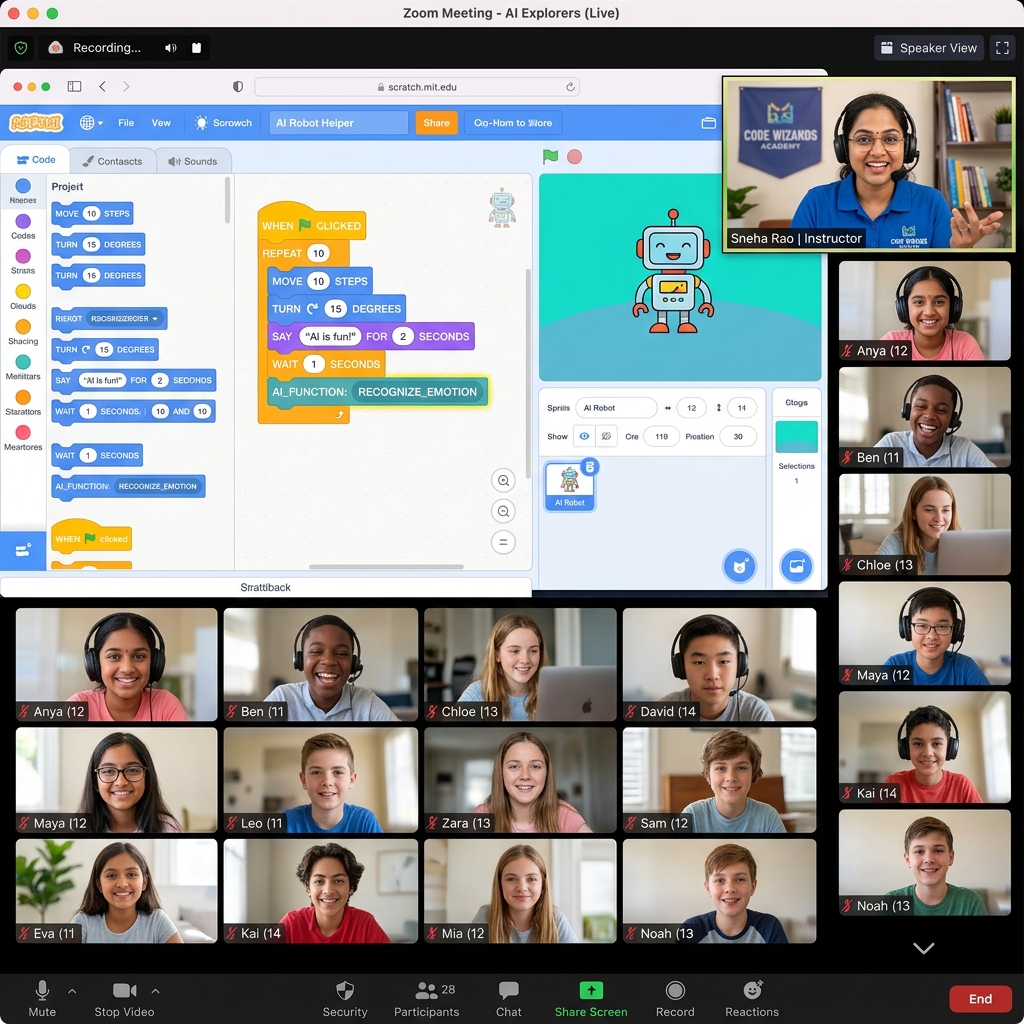
Interactive Coding Program Game

1. Interactive Arcade Game

A custom catch-the-falling-objects Scratch game built with conditional points logic and keyboard coordinate controls.

Animated Visual Story in Scratch

2. Animated Visual Story

A multi-sprite dialog animation about safe surfing rules featuring sound loops and costume modifications.

Digital Poster design

3. Shortcut Digital Poster

A styled poster formatted with fonts and margins highlighting primary computer command shortcuts.

Parent Guidance for Ages 8–10

Helping young children establish healthy technology screen-time habits is a collaborative journey. We recommend:

  • Setup a dedicated study desk with a desktop mouse to build proper forearm support.
  • Encourage 15 minutes of home typing practice daily on our custom software.
  • Observe Coding Program showcases to build confidence through active presentations.

Interactive Batch Setup

Our online classes are designed to replace boring, long lectures with hands-on, highly social coding clubs:

👥 5–10 Students Batches: Perfect size for interactive peer coding games.
⏱️ 20-Min Activity Loops: Frequent checks keep young children focused.

Available Across India

Our online cohort brings live, high-quality, practical computer orientation to primary school students across major metropolitan clusters and regional education hubs. Parents in Bhopal and Indore frequently enroll children in the Beginner path to build core coding logic before transitioning to middle school AI tools. We maintain active student clusters in Raipur, Delhi, Mumbai, Pune, Bangalore, and Hyderabad, aligning our coding curriculum to modern school board requirements.

Parents Also Ask (PAA)

❓ Which learning path should my child start with?
+
For school students aged 8 to 10 in Class 3–5, we strictly recommend starting with the Beginner Digital Skills path to establish hardware orientations and home-row muscle memory.
❓ How long does it take to complete the Beginner path?
+
The core Beginner pathway blocks require 6 weeks of live online instruction. We conduct 1 interactive 2-hour class every weekend.
❓ Can students switch to intermediate paths mid-way?
+
We assess student digital capabilities constantly. If a student demonstrates 20+ WPM typing speeds and complete Scratch coordinate competence early, our coordinates coordinator can adjust their path.
❓ Is block coding mandatory for Class 3–5 kids?
+
It is not legally mandatory, but MIT Coding Program visual logic builds excellent computational habits, helping children grasp loops, coordinates, and sequence logic easily.

Beginner Path FAQ

❓ Is my 8-year-old child ready for computer classes?
+
Yes, children aged 8 are in Class 3 and possess the cognitive readiness and fine motor skills necessary for touch typing and block coding. SkillNest's Beginner path is designed specifically for complete novices.
❓ What will my child learn in the computer basics module?
+
Your child will learn hardware orientation, operating systems navigation, keyboard shortcut commands (Copy/Paste/Save), file creating, folder organization, and desktop customizations.
❓ How does touch typing help primary school students?
+
Touch typing builds key keyboard familiarity, allowing kids to type without looking at their hands. This accelerates school essay writing, computer science practical assignments, and establishes correct ergonomic posture.
❓ What is Scratch visual coding and is it hard?
+
Scratch is a visual drag-and-drop block coding language created by MIT. It replaces text commands with colorful blocks, making it highly engaging and easy for kids aged 8–10 to learn computational logic.
❓ How does SkillNest teach cyber safety to young kids?
+
We use fun scenario stories. Children learn what counts as personal details (e.g. phone, address) that must never be shared online, how to recognize safe web browsers, and what to do if they see uncomfortable popups.
❓ Does my child need their own laptop or desktop?
+
Yes. A Windows laptop, PC, or Macbook with a functional webcam, mic, and chrome browser is required. Tablets or mobile devices are not supported because they lack touch typing layouts and file directories.
❓ What are the key projects my child will build?
+
Your child will build an interactive Scratch arcade game, an animated digital story with sprites and sound, and create a custom formatted digital poster showcasing computer shortcuts.
❓ How long is each class and what is the batch size?
+
Each live interactive session is 2 hours long. Batch sizes are strictly kept between 5 to 10 children to ensure that our expert educators can provide active individual oversight to every child.
❓ Do you offer worksheets or take-home exercises?
+
Yes, we provide fun home typing drills, Scratch visual checklists, and printable digital safety puzzles that reinforce learning outside our online classroom sessions.
❓ What certificate will my child receive after finishing this path?
+
Your child will receive the official SkillNest Beginner Digital Literacy & Coding Program Certificate, recognized by our partner schools.

Ignite Your Child's Computer Journey

Reserve a live online demo session to test their keyboard touch baseline and logical reasoning skills.

Book Free Demo Class →